Converting a Quote to a Booking
In DASH, you can easily convert a quote into a confirmed booking once all required details are completed. This guide explains what information is needed, how to add passengers and payments, and how to finalize the booking conversion.
Complete Required Information
Before converting a quote to a booking, make sure the following details are completed:
Customer Information → Customer profile details must be filled in.
Passenger Information → At least one passenger must be linked to the booking.
Payment → A payment record must be added.

If you haven’t yet created a quote, follow the steps in Adding Enquiries and Adding a Quote first.
Adding Passenger Information
To add passengers to the quote:
-
From Customer Enquiries / Bookings, click the PAX button.

In the Add Passenger form, you can:
-
Add a new passenger by entering their details.
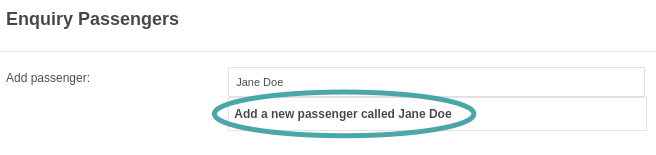
- Select an existing passenger already saved under the customer profile.
-
- Click Save to attach the passenger to the booking.
Adding Payment
To record payment details:
-
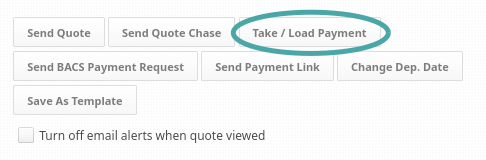
Click Take / Load Payment.
-
To save time, click Copy from Customer to auto-fill payment details, or enter them manually if needed.
Field Description Example Amount Payment amount Amt*Is Founders Payment? Tick if this is a loyalty/founders payment YesPayment Method Customer’s payment type Card Payment / Cash / BACS / Cheque / InvoiceTransaction Date Date of the payment 26/Aug/2025Name Name as it appears on card / payee Name as it appears on the card/payee*Address Search Search for customer address Search address...Address Line 1 Main address line Address Line 1*Address Line 2 Additional address info (optional) Address Line 2City Customer’s city City*County Customer’s county/region County*Postcode Customer’s postal code Post Code*Email Customer’s email address E-mail Address* - Click Take Payment to save the payment record.
Converting to a Booking
Once all required information is in place:
- Review the booking details carefully to ensure accuracy.
-
Click Convert to Booking.
You can still edit booking details after converting, but it’s best to double-check everything beforehand to avoid errors.