Using Omni-Search in DASH
DASH provides a powerful Omni-search tool that lets you quickly find any entity in the system such as customers, people, enquiries, booking, passenger, quotes and supplier elements. This guide explains how to use Omni-search efficiently, including how results are displayed and how recent searches are tracked.
What is Omni-search?
Omni-search is a universal search bar available throughout DASH. It allows you to:
- Search across all entities in the system.
- See results instantly without navigating menus.
- Open a single result directly or select from multiple matches.

Searching Across Entities
You can search by:
- Customer name or other details
- People name or other details
- Enquiry or quote details
- Booking reference or details
- Passenger name or details
- Supplier details

Single Result Shortcut
If your search returns only one match (for example, a single booking reference or a unique customer name), clicking it will take you directly to that record.

Single Result
- Type the keyword into search bar.
- If DASH finds only one match, clicking it opens the booking directly.
Multiple Results Table
f multiple matches are found, DASH displays them in a results table so you can select the right record.

- Type the keyword into the search bar.
-
If multiple records match, DASH will display them in a table.
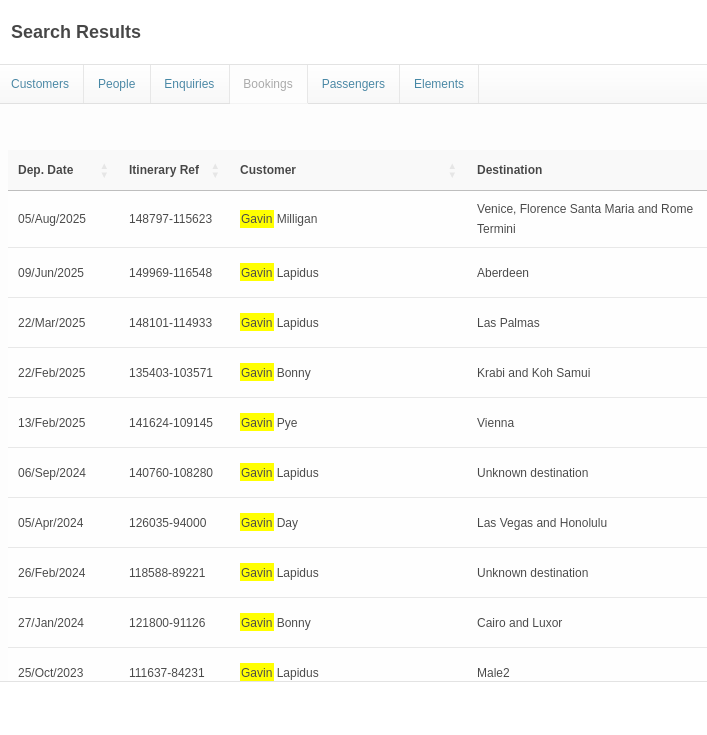
- Click the entity you want to view.
Recent Searches
Omni-search automatically keeps track of your recent queries.
- These appear bellow the search bar panel.
- Clicking a recent search re-runs it instantly.

Example:
- Previous searches:
Booking 1234,Jane Doe,Enquiries 456.
This is useful for quickly jumping back to items you’ve been working on.