Supplier Payments
Within DASH, Supplier Payments (also known as Supplier Remittance) provide a centralized way to manage balances owed to suppliers, payment requests, and refunds. This guide will walk you through the process and explain each section.
Overview
Supplier Payments can be accessed from Back Office > Supplier Payments.
At the top of the page, you will see several tabs:
- Payment Requests
- Balance Payments (Last 30 Days)
- Balance Payments (Older)
- Balance Payments by Supplier
- Refunds Due (Last 30 Days)
- Refunds Due (All)
- Already Paid
- Already Paid (date loaded)
- Balance Payment Reconciliation
Each tab provides a filtered view of supplier transactions, making it easier to track outstanding amounts, due dates, and completed payments.
Payment Requests
Payment Requests are created when a supplier requires a deposit, full balance, or an immediate payment.
Creating a Payment Request
To create a payment request:
- Go to Admin > Supplier Search

- Enter the supplier reference or booking details in the search bar.
- From the search results, click Edit if any details need to be corrected (price, commission, VAT, etc.)
| Field | Description | Example |
|---|---|---|
| Supplier Ref | Unique reference from the supplier | 325-3248670 |
| Total Price | Total booking value | 556.00 |
| Comm exVAT | Commission excluding VAT | 83.40 |
| VAT | Tax applied | 10.68 |
| Net | Automatically calculated (Total - Comm) | 455.92 |
| V.D | Verified Details checkbox | Checked |
| V.F | Verified Financials checkbox | Checked |
- Verify the details by ticking V.D (Verified Details) and V.F (Verified Financials).
- Once verified, click Req. Paym. (Request Payment) on the right-hand side.
These requests will appear in the Payment Requests tab once initiated. From here, you can:
- Review the booking details.
- Confirm the requested amount.
- Remit payment directly from the list.
Balance Payments
Balance payments represent amounts owed to suppliers that are due within a certain timeframe.
- Last 30 Days: Shows balances that became due within the past 30 days.
- Older: Shows balances overdue by more than 30 days.
- Filter balances according to supplier name.
- You can search by reference, lead passenger, or supplier to quickly locate the booking.
-
When a payment is ready, use the Remit column on the right-hand side to process it.
Steps to Remit a Payment
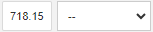
- Enter the Payment Amount
- In the Remit column, type the amount you wish to pay.
-
Example: If the supplier is owed £718.15, enter 718.15.
- Select a Payment Type
- Use the dropdown next to the amount field to choose the appropriate payment method (e.g., Bank Transfer, Card).

- Confirm the Payment Date
- A payment date field appears at the bottom of the table. Ensure it reflects the correct date of payment.

- Click Remit
- Once all details are correct, click the Remit button at the bottom-right of the table.
- Double-check the net amount and supplier reference before remitting.
- Use the search field to quickly locate the booking by supplier ref.
- Payments are logged for reconciliation and can be exported if needed.
Refunds
Refunds work similarly to payments, allowing you to view:
- Refunds due in the last 30 days.
- All refunds due.
These tabs give visibility over pending refunds that must be returned to customers.
Editing Supplier Elements (Admin user only)
- When reviewing supplier records via Admin > Supplier Search, you can adjust key booking details.

- Click on the Edit button to open the booking element. You can update the following fields:
| Field | Description | Example |
|---|---|---|
| Supplier Ref | Unique reference from the supplier | 325-3248670 |
| Total Price | Total booking value | 556.00 |
| Comm exVAT | Commission excluding VAT | 83.40 |
| VAT | Tax applied | 10.68 |
| Net | Automatically calculated (Total - Comm) | 455.92 |
| V.D | Verified Details checkbox | Checked |
| V.F | Verified Financials checkbox | Checked |
Requesting a Payment
To request a supplier payment:
- Navigate to Admin > Supplier Search.
- Enter the supplier reference in the search field.
- Locate the booking in the results.
- If immediate payment is required, click Req. Paym. (Request Payment).
This action moves the booking into the Payment Requests tab under Supplier Payments. You can then remit the payment as normal.
Always verify both details (V.D) and financials (V.F) before approving payments.
Use the search function to quickly find references or passengers.
Payments can be exported via the Export Data button if reporting is needed.