Adding a New Supplier
Suppliers in DASH are the businesses or entities that provide services and products (e.g., tours, hotels, transfers) for your customer bookings and quotes. Managing suppliers correctly ensures accurate pricing, smooth bookings, and reliable quotes.
Export Supplier Data
Sometimes you may need to keep a copy of your supplier data outside DASH, for example, for reporting or backup purposes. DASH lets you easily export your supplier list into Excel.
How to Export Suppliers Data
-
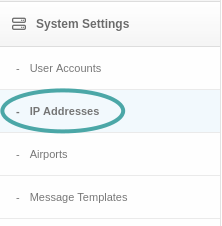
Go to System Settings > Supplier
-
Click Export Data button to export supplier data.
- It will generate and download an Excel file (.xlsx) containing your supplier list.
The exported file is a snapshot of your suppliers at the moment you export it. If you make changes later, you’ll need to export again for the latest version.
Add a New Supplier
When you start working with a new vendor, you’ll need to add them to DASH. This ensures they appear in your supplier list and allows you to use them in customer quotes and bookings. Each supplier profile should include full details to avoid mistakes in payments, commissions, or services offered.
How to add a New Supplier:
-
Go to System Settings > Supplier
-
Click Add Supplier button and fill out the form.
- Complete the form with the following detail and click Save.
| Field | Description | Example |
|---|---|---|
| Name | Supplier name | ABC Tours |
| Balance Due | Payment timing (in days) | 88 days |
| Default Deposit | Deposit type | £100/passenger / £200/booking / 10% |
| Comm VAT | Commission VAT type | incVAT / exVAT / nonVAT |
| Influence Balance | Whether balance due affects calc. | Yes / No |
| Auto Ticket | Automatic ticketing enabled | Yes / No |
| Services | Services provided | Villa, Tour, Attraction |
| Telephone | Supplier phone number | +44 1234 567890 |
| Website URL | Supplier’s website | https://example.com |
Make sure the supplier details are accurate before saving. Incorrect deposits, VAT, or service entries can cause errors in quotes or payment schedules later.
Remove a Supplier
If you no longer work with a supplier, you can remove them from DASH. This keeps your list clean and prevents staff from accidentally using outdated suppliers in new quotes.
How to remove a supplier
- Go to System Settings > Supplier
- Find the supplier you want to remove in the list.
- Click Delete button on the right of the row.
Once deleted, the supplier cannot be used in future bookings or quotes. Only delete suppliers you are certain you no longer need.