Managing IP Addresses in DASH
Within DASH, IP addresses help control login security and can also be used to block unwanted or spam enquiries. This guide will show you how to use both features.
Non-2FA IP Addresses
DASH uses 'Two-Factor Authentication' (2FA) for extra security. Normally, when logging in a user must enter a 'One Time Passcode (OTP) sent to their email address or mobile phone.
If you add your office or trusted location’s IP address to the Non-2FA IP Addresses, users logging in from these locations won’t have to provide the OTP.
How to add an IP address to the Non-2FA IP Addresses
-
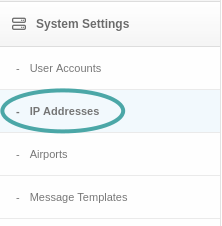
Go to System Settings > IP Addresses
-
Go to the Non-2FA IP Addresses tab and fill out the form above the list of IP addresses:

- Enter the following details and click Add IP Address.
| Field | Description | Example |
|---|---|---|
| IP Address
(required) |
The IP you want to allow to bypass 2FA | 198.51.100.12 |
| Label
(required) |
A friendly name to identify this IP address | Main Office |
Only add trusted IP addresses from which users log in frequently.
How to Remove a Non-2FA IP Address
- Go to System Settings > IP Addresses > Non-2FA Addresses
- Find the IP address you want to remove in the list.
- Click the Remove button on the right of the row.
Removing a trusted IP will require two-factor authentication for all future logins from that location.
SPAM IP Addresses
One way to identify spam enquiries is by checking the IP address they come from. DASH automatically marks any enquiries from blocked IP addresses as SPAM, preventing them from being received.
Think of this like a “block list” for SPAM enquiries.
How to add an IP address to the SPAM IP Addresses
-
Go to System Settings > IP Addresses
-
Go to the Spam IP Addresses tab and fill out the form above the list of IP addresses:

- Enter the following details and click Add IP Address.
| Field | Description | Example |
|---|---|---|
| IP Address
(required) |
The IP address from which you want enquiries to be marked as SPAM | 198.51.100.12 |
This feature should be used with caution as wrongly listing an IP address will risk genuine customer enquiries being marked as SPAM. Please check the SPAM enquiries list frequently.
How to Remove a Spam IP Address
- Go to System Settings > IP Addresses > Spam IP Addresses
- Find the IP address you want to remove in the list.
- Click the Remove button on the right of the row.
This will allow enquiries from that IP address again.